Microsoft Entra App Registrations: Client Credentials, App Roles, and Workload Identity Federation/Step 2 of 5
Create App Registration for Client
Here we will create the app registration for the Books-reader client app.
Create the app registration
Open Azure Portal, go to app registrations and create new.
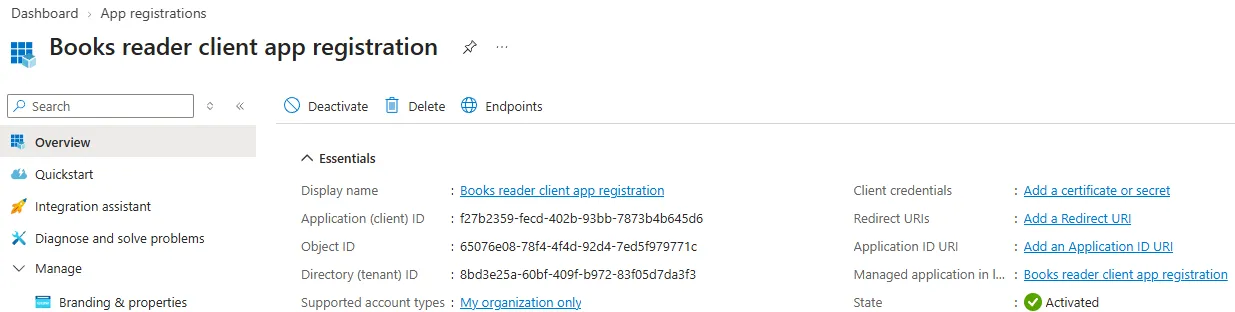
Enter Books reader client app registration for the name and click Register.
Set API permissions
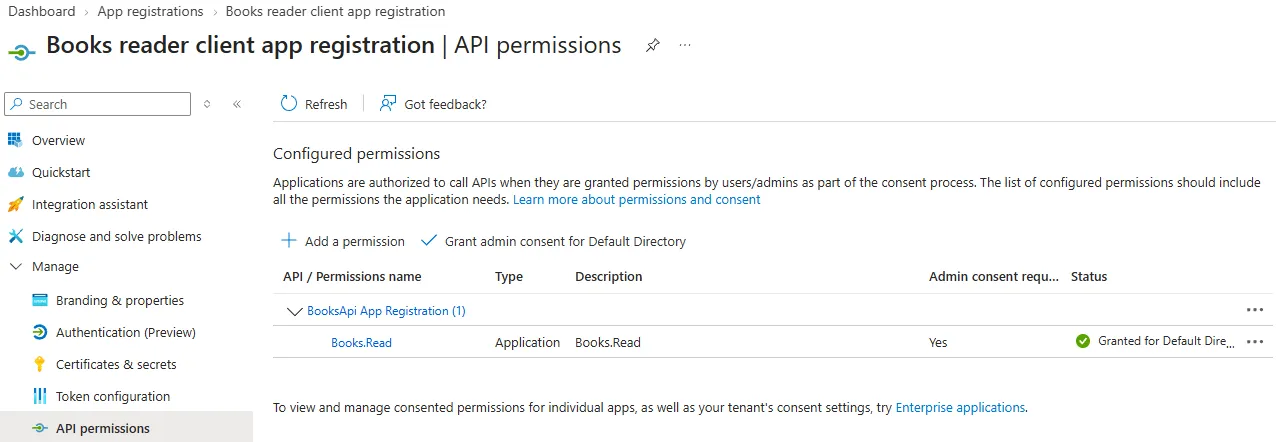
Go to tab API permissions.
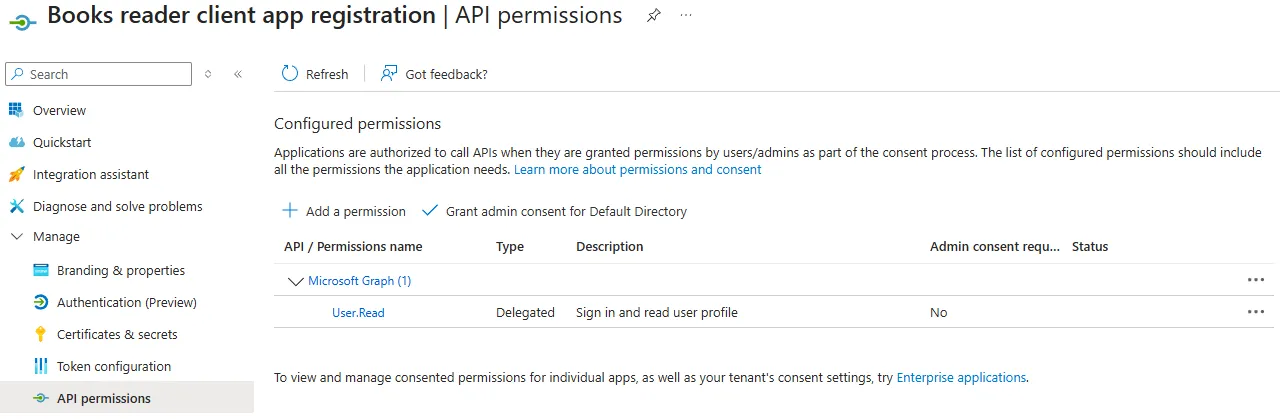
Remove User.Read from Microsoft Graph, as our flow does not involve users. Hence, delegated permissions have no use.
Next, click Add a permission and go to My APIs.
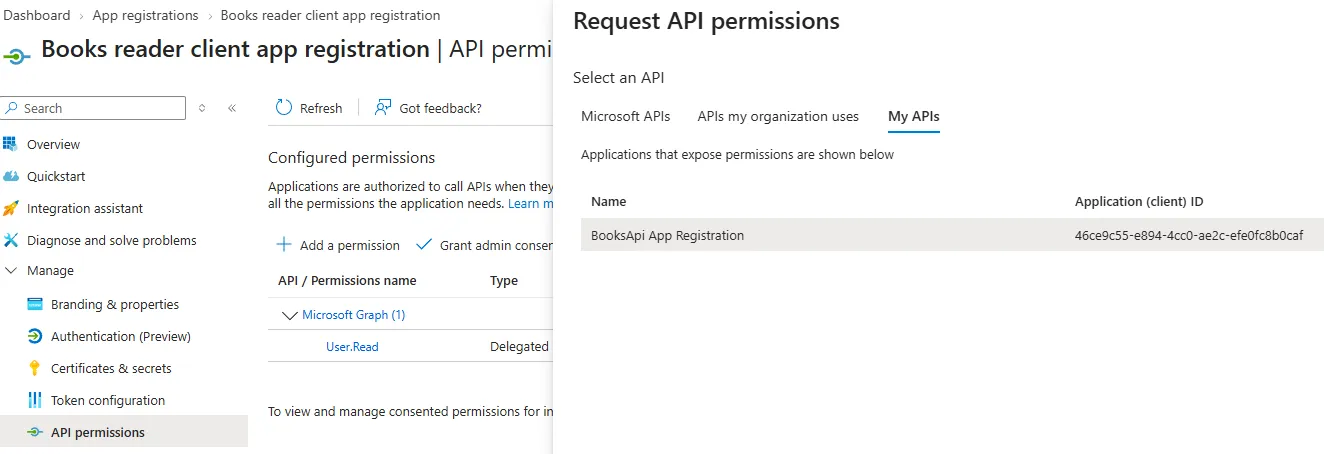
Choose the BooksAPI App Registration, select Application permissions and Books.Read.
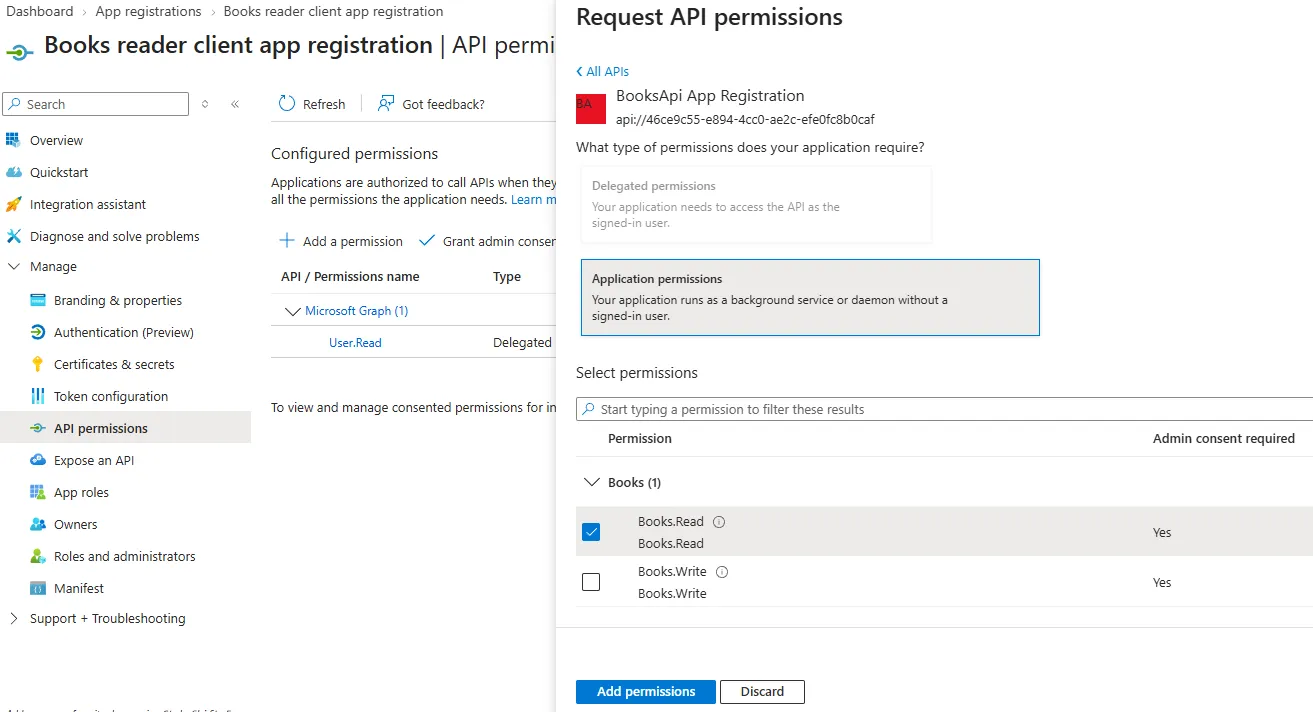
Click Add permissions button.
Grant admin consent
Next, click Grant admin consent for Default Directory.
This is necessary as the application cannot consent anything by itself.
The final permissions screen should look like this:
Create a client secret
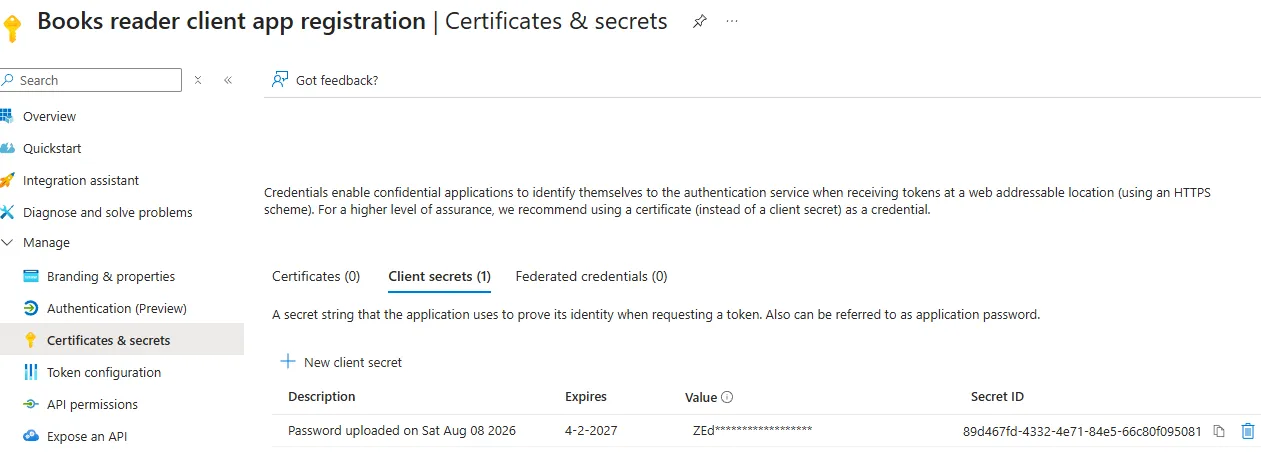
Go to Certificates & Secrets and open tab Client secrets.
Click New client secret and then Add.
Make sure that you copy the secret value, as this will automatically be masked by Azure Portal.
What is next
We’ve defined the books reader client app registration. Important identifiers that we need later on include:
- Tenant ID:
8bd3e25a-60bf-409f-b972-83f05d7da3f3 - Client ID:
f27b2359-fecd-402b-93bb-7873b4b645d6 - Client secret value
<your-client-secret-value>
From previous steps:
- Application ID URI:
api://46ce9c55-e894-4cc0-ae2c-efe0fc8b0caf
Next, we will write a minimal .NET console application to acquire a token.